Configure statutory and non-statutory leave types
For the statutory holidays, you configure two leave types under the term of employment.
The table with leave types and priorities has to be extended in advance.
The two leave types you configure in the term of employment are:
- Statutory holidays
For the basic entitlement, enter the statutory number of hours (160) for the year in question.
- Non-statutory holidays
For the basic entitlement you enter the non-statutory part of the holidays.
In this description we use the statutory norm as starting point. A lot of CLAs use deviating dates.
To add a leave type for statutory holidays:
- Go to: HR / Organisation / CLA.
- Open the CLA properties.
- Go to the tab: Term of employment.
- Open the properties of the term of employment.
- Go to the tab: Leave.
- Click on: New.
- Enter 1 January of the year in question in Start date.
- Enter 31 December of the current year in End date.
- Enter 30 June of the subsequent year in Last entry date. The statutory leave can be entered up to this date.
- Select the leave type for the statutory holidays for the year in question in Leave type.
- In Basic leave type, select Statutory.
- Enter the statutory holiday hours in Basis period right.
- Click on: Next.
- Select the Update leave entitlement balance check box if it is not already selected.
- Select a Method.
- In Negative leave entitlement balance, select Limited based on balance in leave period (valid on start date).
The balance for the current leave period must be sufficient in order for the employee to take leave. A check is made on the balance of the leave period that applies on the start date of the leave request. The employee must accrue sufficient leave entitlement in the current leave period (the entire leave period counts) before the employee can take any leave.
The difference between the various options is explained in the Help topic Add the holiday leave type.
- Click on: Finish.
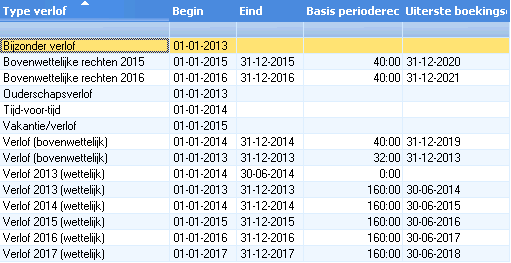
You add the leave type for multiple future years.
To add a leave type for non-statutory holidays:
Whether you take this step depends on how you manage the leave: by adding a non-statutory leave type annually or by continuing with the existing non-statutory leave type.
- Click on: New.
- Enter 1 January of the year in question in Start date.
- Enter 31 December of the current year in End date.
- Enter 31 December of the year five years after the end date in Last entry date.
For the non-statutory leave of 2015, you would enter 31 December 2020, for example.
- Select the leave type for non-statutory hours in Leave type.
- In Basic leave type, select Leave.
- Enter the non-statutory holiday hours in Basis period right.
- Click on: Next.
- Select the Update leave entitlement balance check box.
- If necessary, select another Method.
You can find more information at
 Calculate the periodical leave entitlement based on. HR.
 - In Negative leave entitlement balance, select Limited based on balance in leave period (valid on start date).
The balance for the current leave period must be sufficient in order for the employee to take leave. A check is made on the balance of the leave period that applies on the start date of the leave request. The employee must accrue sufficient leave entitlement in the current leave period (the entire leave period counts) before the employee can take any leave.
It is, furthermore, not allowed to have 'No limit on a negative balance' as a setting with regard to composite leave types to which you link this non-statutory leave type.
The difference between the various options is explained in the Help topic Add the holiday leave type.
- Click on: Finish.
You see the leave type for the non-statutory part of the holidays with a duration of 5 years.
See also