Edit an image in the media gallery
You can change an image you have added to the media gallery. For example, you can change the description or place the image in a different category. In addition, you can also link a deviating image per format. You can also select another image. If you do that here then the image on each page to which the image is linked is changed to the new image.
To edit an image in the media gallery:
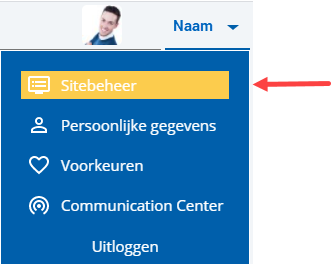
 Log on and start Site management.
- Click on: Media gallery.
- Select the image.
- Open the properties of the image by clicking on it.
If an image is larger than 1000 x 1000 or only higher or wider than 1000, the setting Use original image is displayed.
InSite and OutSite use a maximum size. We compress images that are larger. By clicking Use original image, you open the original image.
- Change the required fields.
Note:
If you have selected a deviating image for one or more formats, you are now asked whether you want to replace the deviating image with the new image, adjusted to fit the corresponding format. Click No if you want to save the deviating image.
- Click Show links if you want to see where the image is used.
More information:
- Click on: Modify.
|
Directly to |