Display photo of logged in user

You can display a photo on the site of the logged-on user. The photo is in front of the user's name.

If a photo is not yet available of a user linked to his or her data, nothing will be displayed.

Display photo of logged in user

  1. Log on and start Site management.
    1. Open the site.
    2. Log on with the username and password.
    3. Click on: OK.
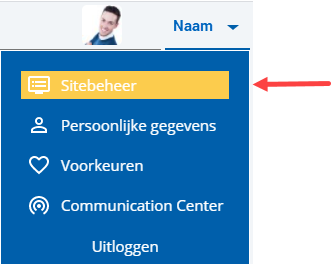
    4. Click on the user name at the top right.

      Ins_Sitebeheer opstarten (10)

    5. Click on: Site management.

  2. Click on: Layout.
  3. Go to the tab: General.
  4. Select the Display photo of logged on user check box.
  5. Click on: Modify.

Directly to

  1. Configure InSite
  2. Browsers supported
  3. Install InSite
  4. Set up the main InSite site
  5. Start InSite using a shortcut
  6. InSite Authorisation
  7. Configuring how to log into OutSite with your own identity provider (single sign-on)
  8. Change the login page
  9. Display photo of logged in user
  10. Configure the process for a forgotten password
  11. Theme editor
  12. Layout and zones
  13. Menu of the site
  14. Configure the site functionality
  15. Document management
  16. Configure input form InSite & OutSite
  17. Profiles
  18. Media gallery