Logging in with a passkey
|
This new functionality is available as from Profit 3. |

Passkeys offer a fast and secure way of logging in without a password. You can use them to log in to the AFAS Online portal (Profit and InSite). You can read all about the advantages of passkeys on the theme page on the AFAS Customer Portal and the Microsoft website.
This functionality is available as from August 6, 2024.
Note:
AFAS supports passkeys when logging in to AFAS Online. There are many ways to store passkeys via a password manager, on your PC, on your phone or via another method. The possibilities depend on your own system or device, AFAS does not support this. If you have questions about the use of passkeys in your organisation, please contact the system administrator in your own organisation.
|
Contents |
Description
With passkeys (using the FIDO2 standard), authentication takes place via your device, for example your laptop or mobile phone. There is no need to install a separate app for this. When logging in, you will soon have three ways to use passkeys:
- You use a password manager for authentication.
This is the recommended option! When you get a new computer, you transfer the password manager to your new computer and automatically take the passkey with you.
- You use your computer for authentication.
Depending on the account settings on your computer, you can use biometrics via Windows Hello (face/fingerprint) or a PIN. - You use your mobile phone for authentication.
Use the steps below to set this up at your own convenience. Until you set up a passkey, you continue to log in in the familiar way, nothing will change here. If your passkey no longer works, for example because you get a new computer, you can log in again in the old way. We recommend you use at least two of the above options, e.g. computer and mobile phone. If you then get a new computer, you can still log in via your mobile phone until you have set up passkey again on your new computer.
Register passkey
You register a passkey once on your password manager, computer or phone
- Go to www.afasonline.nl.
The login screen appears.
- Log in with e-mail address and password as usual and confirm via two-factor authentication if necessary.Click Add under Passkeys.
- Go to Settings / Security.
- Click Add under Passkeys.
Enter a name that refers to the way you want to store the passkey, e.g. Computer, Password Manager or Phone.
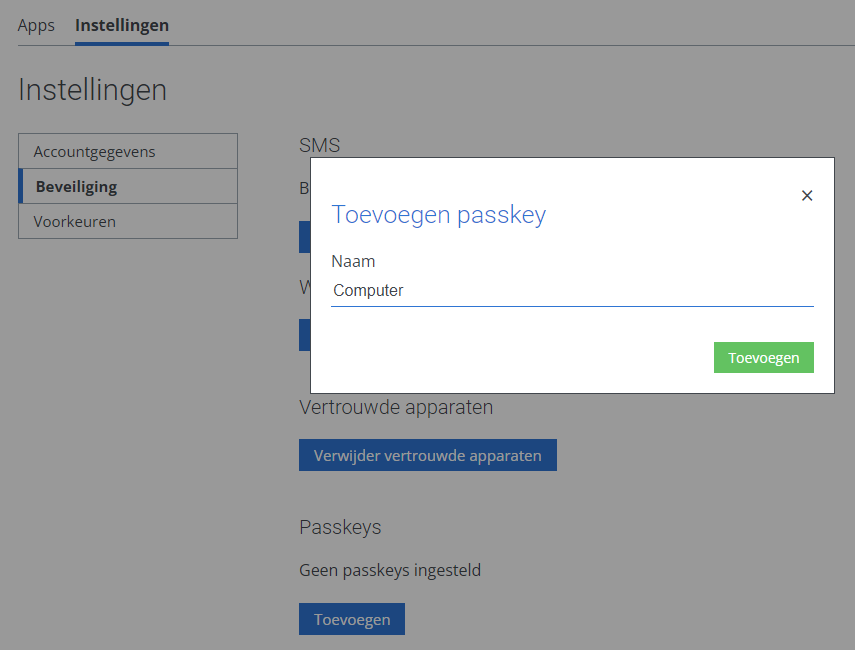
- Click: Add.
- Create the passkey.
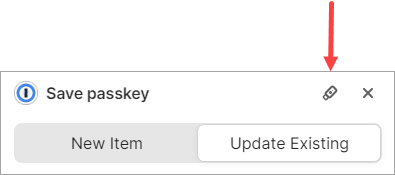
If you use a password manager, it may be displayed first. You may have to give permission to use the password manager.
You can use the password manager to store your passkey. If you want to use another way, you need to specify this in the password manager. Below is an example of 1Password. 1Password appears by default, but via the button in the image below you can select a different way. This differs from one password manager to another.
If you use a phone, a QR code will appear on the screen. Scan the QR code with your phone and follow the steps on your phone to complete the process.
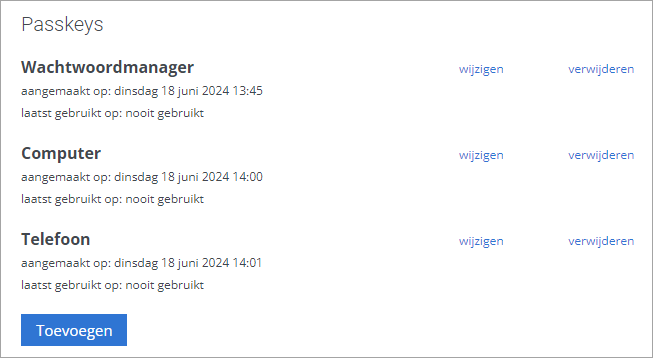
- You will see the added passkeys in the AFAS Online portal.
In the example, you will see three added passkeys. We recommend that you use at least two of the options, e.g. computer and mobile phone.
Logging in to AFAS Online with passkey
Below are the steps to sign yourself in via a password manager or via your computer/phone.
Logging in via a password manager:
- Go to www.afasonline.nl.
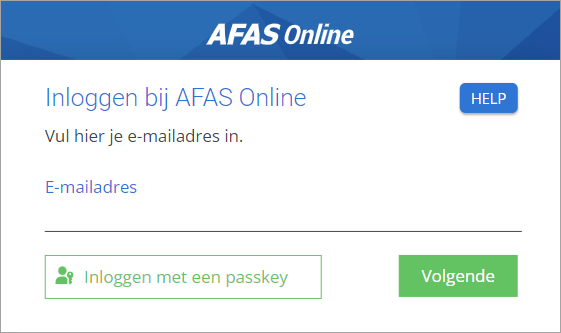
- Click: Log in with a passkey.
- If you are logging in with a passkey for the first time, you will see the screen below. This screen also appears if you have deleted your internet cookies or if you have a new computer. Click Log in with a passkey again.
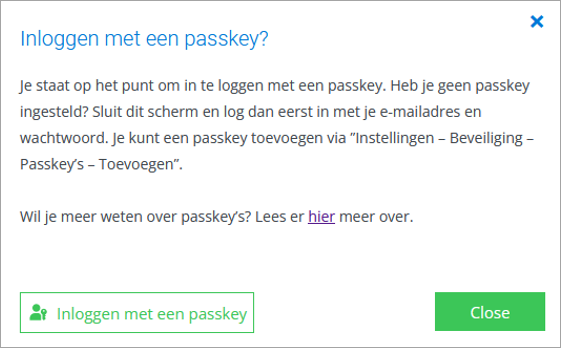
- Log in with a passkey.
Sign in if you use multiple e-mail addresses:
There may obviously be passkeys for different e-mail addresses, because you log in to AFAS Online using different e-mail addresses. For most customers, this is irrelevant (because you use the same e-mail address all the time). However, this may be relevant for accountants, application managers and consultants, for example.
- If the email address is not known when logging in (as in the image above), you will see the passkeys for the different email addresses. Select the correct e-mail address and complete the login process.
- If the e-mail address is known when logging in, sign in with the corresponding passkey.
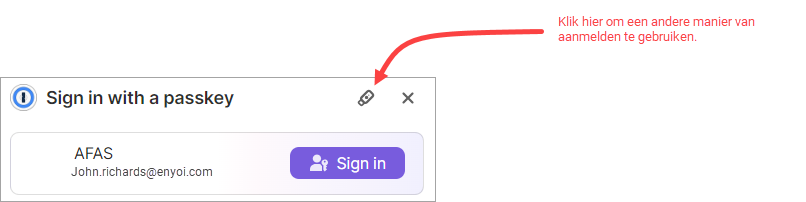
Skip password manager:
Below is an example of 1Password (this is a password manager). If you want to log in another way, you need to specify this in the password manager. Below is an example of 1Password. This varies from one password manager to another.
Log in via your computer or your phone:
Indicate which method you want to use.
- If you use your computer, then log in, This can be done via Windows Hello, for example. If the login succeeds, you will be logged in to AFAS Online.
- If you are using a phone, a QR code will appear which you scan on with your phone. Then follow the steps on your phone to complete the login.
Change or remove passkey
You can change the description of a passkey or delete a passkey. If you delete all passkeys, you can only log in via two-factor authentication.
If you want to re-add a passkey for a device, first delete the old passkey. Then add the new passkey.
- Go to www.afasonline.nl.
- Go to Settings / Security.
Use the links to change the description of a passkey or to delete a passkey.